 大神手游网
大神手游网Win7怎么让文件及文件夹可以自由排序随意拖动?
很多时候我们发现Win7系统中,文件和文件夹是不可以随意拖动的,不管你拖动到什么位置都会自动排列回去,那么有时我们想按自己的习惯排列文件和文件夹图标就不可以了,不过按下面小编的方法设置一下,一切都搞定了!

Windows7排列
Win7怎么让文件及文件夹可以自由排列随意拖动?操作方法如下:1、打开Windows7旗舰版的记事本程序,然后将下面红色的代码复制到记事本中;
Windows Registry Editor Version 5.00
;Disable Full Row select feature in Windows 7;Created by Ramesh Srinivasan;Created on 19 Feb 2010
[-HKEY_CURRENT_USERSoftwareClassesLocal SettingsSoftwareMicrosoftWindowsShellBags]
[HKEY_CURRENT_USERSoftwareMicrosoftWindowsCurrentVersionExplorerAdvanced]”FullRowSelect”=dword:00000000
[HKEY_CURRENT_USERSoftwareClassesLocal SettingsSoftwareMicrosoftWindowsShellBagsAllFoldersShell]”KnownFolderDerivedFolderType”=”{57807898-8C4F-4462-BB63-71042380B109}””SniffedFolderType”=”Generic”
;Generic – Folder Template;m.winwin7.com
[HKEY_CURRENT_USERSoftwareClassesLocal SettingsSoftwareMicrosoftWindowsShellBagsAllFoldersShell{5C4F28B5-F869-4E84-8E60-F11DB97C5CC7}]”Rev”=dword:00000000″FFlags”=dword:43000001″Vid”=”{137E7700-3573-11CF-AE69-08002B2E1262}””Mode”=dword:00000004″LogicalViewMode”=dword:00000001″IconSize”=dword:00000010″ColInfo”=hex:00,00,00,00,00,00,00,00,00,00,00,00,00,00,00,00,fd,df,df,fd,10,0,00,00,00,00,00,00,00,00,00,00,04,00,00,00,18,00,00,00,30,f1,25,b7,ef,47,1a,10,a5,f1,02,60,8c,9e,eb,ac,0a,00,00,00,10,01,00,00,30,f1,25,b7,ef,47,1a,10,a5,f1,02,60,8c,9e,eb,ac,0e,00,00,00,78,00,00,00,30,f1,25,b7,ef,47,1a,10,a5,f1,02,60,8c,9e,eb,ac,04,00,00,00,78,00,00,00,30,f1,25,b7,ef,47,1a,10,a5,f1,02,60,8c,9e,eb,ac,0c,00,00,00,50,00,00,00″Sort”=hex:00,00,00,00,00,00,00,00,00,00,00,00,00,00,00,00,01,00,00,00,30,f1,25,b7,ef,47,1a,10,a5,f1,02,60,8c,9e,eb,ac,0a,00,00,00,01,00,00,00″GroupView”=dword:00000000″GroupByKey:FMTID”=”{00000000-0000-0000-0000-000000000000}””GroupByKey:PID”=dword:00000000″GroupByDirection”=dword:00000001
;Documents – Folder Template
[HKEY_CURRENT_USERSoftwareClassesLocal SettingsSoftwareMicrosoftWindowsShellBagsAllFoldersShell{7d49d726-3c21-4f05-99aa-fdc2c9474656}]”Rev”=dword:00000000″Vid”=”{137E7700-3573-11CF-AE69-08002B2E1262}””Mode”=dword:00000004″LogicalViewMode”=dword:00000001″IconSize”=dword:00000010″ColInfo”=hex:00,00,00,00,00,00,00,00,00,00,00,00,00,00,00,00,fd,df,df,fd,10,0,00,00,00,00,00,00,00,00,00,00,04,00,00,00,18,00,00,00,30,f1,25,b7,ef,47,1a,10,a5,f1,02,60,8c,9e,eb,ac,0a,00,00,00,10,01,00,00,30,f1,25,b7,ef,47,1a,10,a5,f1,02,60,8c,9e,eb,ac,0e,00,00,00,78,00,00,00,30,f1,25,b7,ef,47,1a,10,a5,f1,02,60,8c,9e,eb,ac,04,00,00,00,78,00,00,00,30,f1,25,b7,ef,47,1a,10,a5,f1,02,60,8c,9e,eb,ac,0c,00,00,00,50,00,00,00″Sort”=hex:00,00,00,00,00,00,00,00,00,00,00,00,00,00,00,00,01,00,00,00,30,f1,25,b7,ef,47,1a,10,a5,f1,02,60,8c,9e,eb,ac,0a,00,00,00,01,00,00,00″GroupView”=dword:00000000″GroupByKey:FMTID”=”{00000000-0000-0000-0000-000000000000}””GroupByKey:PID”=dword:00000000″GroupByDirection”=dword:00000001″FFlags”=dword:43000001
;Music – Folder Template
[HKEY_CURRENT_USERSoftwareClassesLocal SettingsSoftwareMicrosoftWindowsShellBagsAllFoldersShell{94d6ddcc-4a68-4175-a374-bd584a510b78}]”Rev”=dword:00000000″Vid”=”{137E7700-3573-11CF-AE69-08002B2E1262}””Mode”=dword:00000004″LogicalViewMode”=dword:00000001″IconSize”=dword:00000010″ColInfo”=hex:00,00,00,00,00,00,00,00,00,00,00,00,00,00,00,00,fd,df,df,fd,10,0,00,00,00,00,00,00,00,00,00,00,04,00,00,00,18,00,00,00,30,f1,25,b7,ef,47,1a,10,a5,f1,02,60,8c,9e,eb,ac,0a,00,00,00,10,01,00,00,30,f1,25,b7,ef,47,1a,10,a5,f1,02,60,8c,9e,eb,ac,0e,00,00,00,78,00,00,00,30,f1,25,b7,ef,47,1a,10,a5,f1,02,60,8c,9e,eb,ac,04,00,00,00,78,00,00,00,30,f1,25,b7,ef,47,1a,10,a5,f1,02,60,8c,9e,eb,ac,0c,00,00,00,50,00,00,00″Sort”=hex:00,00,00,00,00,00,00,00,00,00,00,00,00,00,00,00,01,00,00,00,30,f1,25,b7,ef,47,1a,10,a5,f1,02,60,8c,9e,eb,ac,0a,00,00,00,01,00,00,00″GroupView”=dword:00000000″GroupByKey:FMTID”=”{00000000-0000-0000-0000-000000000000}””GroupByKey:PID”=dword:00000000″GroupByDirection”=dword:00000001″FFlags”=dword:43000001
;Pictures – Folder Template
[HKEY_CURRENT_USERSoftwareClassesLocal SettingsSoftwareMicrosoftWindowsShellBagsAllFoldersShell{b3690e58-e961-423b-b687-386ebfd83239}]”Rev”=dword:00000000″Vid”=”{137E7700-3573-11CF-AE69-08002B2E1262}””Mode”=dword:00000004″LogicalViewMode”=dword:00000001″IconSize”=dword:00000010″ColInfo”=hex:00,00,00,00,00,00,00,00,00,00,00,00,00,00,00,00,fd,df,df,fd,10,0,00,00,00,00,00,00,00,00,00,00,04,00,00,00,18,00,00,00,30,f1,25,b7,ef,47,1a,10,a5,f1,02,60,8c,9e,eb,ac,0a,00,00,00,10,01,00,00,30,f1,25,b7,ef,47,1a,10,a5,f1,02,60,8c,9e,eb,ac,0e,00,00,00,78,00,00,00,30,f1,25,b7,ef,47,1a,10,a5,f1,02,60,8c,9e,eb,ac,04,00,00,00,78,00,00,00,30,f1,25,b7,ef,47,1a,10,a5,f1,02,60,8c,9e,eb,ac,0c,00,00,00,50,00,00,00″Sort”=hex:00,00,00,00,00,00,00,00,00,00,00,00,00,00,00,00,01,00,00,00,30,f1,25,b7,ef,47,1a,10,a5,f1,02,60,8c,9e,eb,ac,0a,00,00,00,01,00,00,00″GroupView”=dword:00000000″GroupByKey:FMTID”=”{00000000-0000-0000-0000-000000000000}””GroupByKey:PID”=dword:00000000″GroupByDirection”=dword:00000001″FFlags”=dword:43000001
;Videos – Folder Template
[HKEY_CURRENT_USERSoftwareClassesLocal SettingsSoftwareMicrosoftWindowsShellBagsAllFoldersShell{5fa96407-7e77-483c-ac93-691d05850de8}]”Rev”=dword:00000000″Vid”=”{137E7700-3573-11CF-AE69-08002B2E1262}””Mode”=dword:00000004″LogicalViewMode”=dword:00000001″IconSize”=dword:00000010″ColInfo”=hex:00,00,00,00,00,00,00,00,00,00,00,00,00,00,00,00,fd,df,df,fd,10,0,00,00,00,00,00,00,00,00,00,00,04,00,00,00,18,00,00,00,30,f1,25,b7,ef,47,1a,10,a5,f1,02,60,8c,9e,eb,ac,0a,00,00,00,10,01,00,00,30,f1,25,b7,ef,47,1a,10,a5,f1,02,60,8c,9e,eb,ac,0e,00,00,00,78,00,00,00,30,f1,25,b7,ef,47,1a,10,a5,f1,02,60,8c,9e,eb,ac,04,00,00,00,78,00,00,00,30,f1,25,b7,ef,47,1a,10,a5,f1,02,60,8c,9e,eb,ac,0c,00,00,00,50,00,00,00″Sort”=hex:00,00,00,00,00,00,00,00,00,00,00,00,00,00,00,00,01,00,00,00,30,f1,25,b7,ef,47,1a,10,a5,f1,02,60,8c,9e,eb,ac,0a,00,00,00,01,00,00,00″GroupView”=dword:00000000″GroupByKey:FMTID”=”{00000000-0000-0000-0000-000000000000}””GroupByKey:PID”=dword:00000000″GroupByDirection”=dword:00000001″FFlags”=dword:43000001
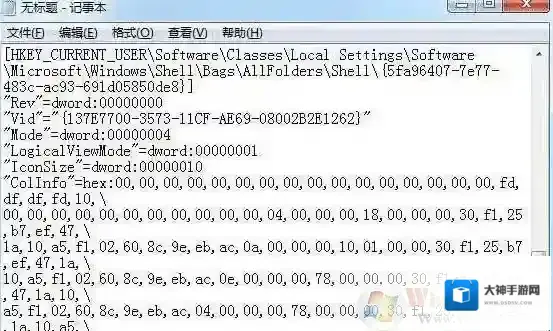
Windows7拖动
2、然后在记事本中点击菜单栏上的“文件”–“另存为”,文件类型选择为“所有文件”,并保存为“Win7自由排列.reg”
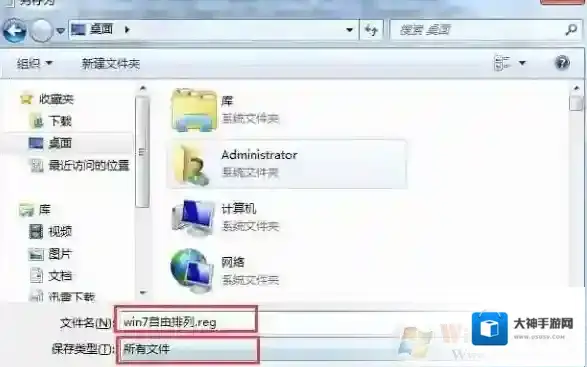
Windows7文件
3、双击创建好的“Win7自由排列.reg”导入注册表中;4、导入后重新启动一下win7系统,这时你发现文件和文件夹已经能自由排列了,不过有的用户出现了一些问题,”平铺视图“不见了,那么我们还要解决一下这个问题,复制下面的代码到记事本中;const HKEY_CURRENT_USER = H80000001strComputer = “.”Set objWMIService = GetObject(“winmgmts:” _ “{impersonationLevel=impersonate}!” strComputer “rootcimv2”)Set colProcessList = objWMIService.ExecQuery _(“select * from Win32_Process Where Name = ‘explorer.exe'”)For Each objProcess in colProcessListobjProcess.Terminate()NextSet objRegistry=GetObject(“winmgmts:{impersonationLevel=impersonate}!” _strComputer “rootdefault:StdRegProv”)strKeyPath1 = “SoftwareClassesLocal SettingsSoftwareMicrosoftWindowsShellBags”strKeyPath2 = “SoftwareClassesLocal SettingsSoftwareMicrosoftWindowsShellBagMRU”strKeyPath3 = “SOFTWAREMicrosoftWindowsCurrentVersionExplorerStreamsDefaults”DeleteSubkeys HKEY_CURRENT_USER, strKeypath1DeleteSubkeys HKEY_CURRENT_USER, strKeypath2DeleteSubkeys HKEY_CURRENT_USER, strKeypath3Sub DeleteSubkeys(HKEY_CURRENT_USER, strKeyPath)objRegistry.EnumKey HKEY_CURRENT_USER, strKeyPath, arrSubkeysIf IsArray(arrSubkeys) ThenFor Each strSubkey In arrSubkeysDeleteSubkeys HKEY_CURRENT_USER, strKeyPath “” strSubkeyNextEnd IfobjRegistry.DeleteKey HKEY_CURRENT_USER, strKeyPathEnd Sub 5、另存为 “修复平铺视图.vbs” 注意这次是.vbs而不是reg文件,其实是一个脚本文件。6、运行创建好的脚本,系统会自动重启桌面,OK到这里问题就解决了,也实现了文件夹文件夹自由排列和拖动的功能。
电脑提示无法定位程序输入点于动态链接库上该如何解决?
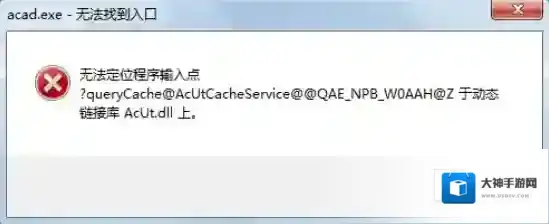
Windows7版本
如何解决呢?解决方法在下方:方法一:工具Windows 7 64位操作系统浏览器操作流程1.首先确定自己的电脑操作系统及版本,下载对应的32位或者64位的dll文件
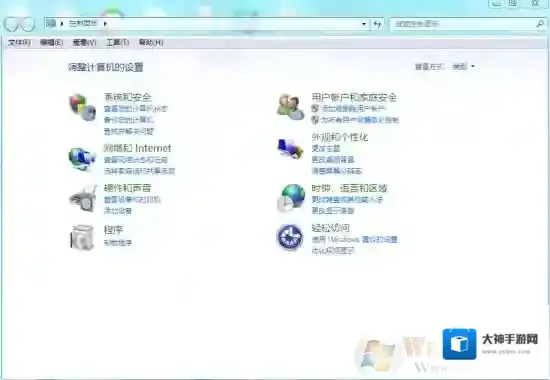
Windows7操作系统
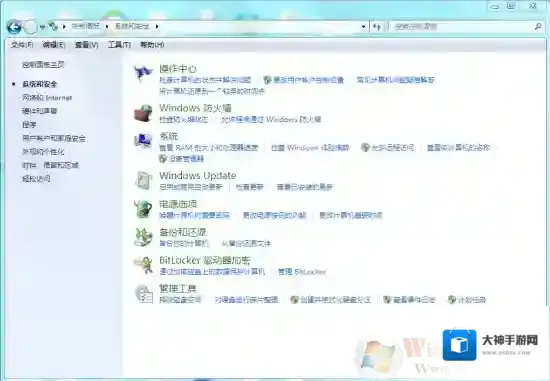
Windows7文件
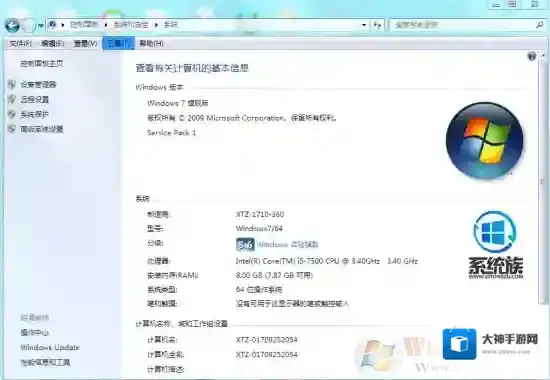
Windows7下载
2.将下载好的文件放入系统文件夹内,32位操作系统将文件拷贝到“C:/Windows/System32/”文件夹下;对于64位操作系统,则将文件拷贝到“C:/Windows/syswow64/”文件夹下
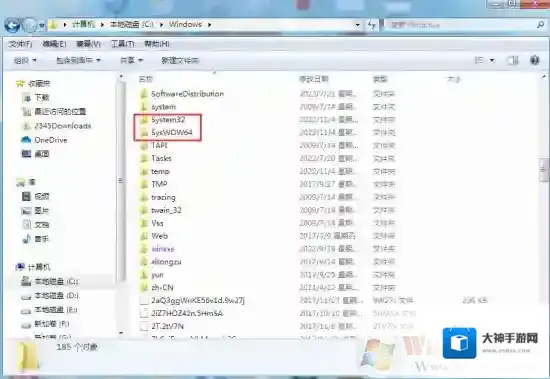
Windows7拷贝到
3.注册DLL,在桌面左下角的运行窗口输入“C:/Windows/System32/下载的dll文件名”然后点击确定
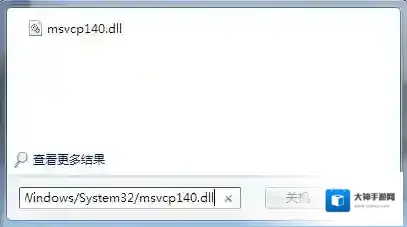
4.重启报错的软件即可方法二:工具Windows 7 64位操作系统腾讯电脑管家操作流程1.打开腾讯电脑管家的工具箱页面,找到电脑诊所

2.点击软件硬件模块
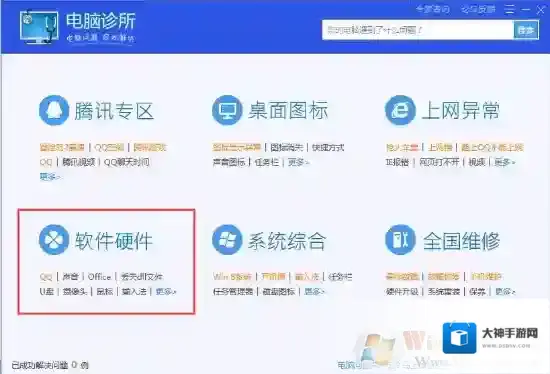
3.找到缺失的dll文件点击即可进行修复

4.修复完成后重启报错的软件方法三:工具Windows 7 64位操作系统快快运行库修复助手(下载地址:快快运行库修复助手)操作流程1.点击快快运行库的系统DLL修复功能

2.扫描完成后点击立即修复即可,如果扫描出的结果没有你需要找的dll文件,还可以使用首页的查找dll功能进行搜索


3.搜索适配自己需要的dll文件版本后按照提示放入系统文件夹,32位操作系统将文件拷贝到“C:/Windows/System32/”文件夹下;对于64位操作系统,则将文件拷贝到“C:/Windows/syswow64/”文件夹下4.重启报错的软件即可
Win7无法安装NVIDIA 442.59以上版本显卡驱动解决方法
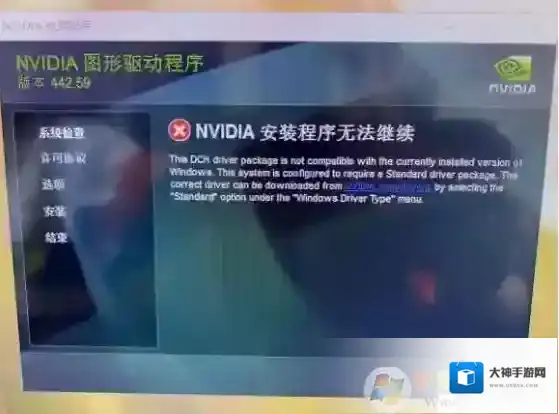
Windows7下载
步骤如下:1、首先下载:Win7 KB3033929补丁+winload.exe下载2、打开Windows update服务。3、安装补丁,不要重启4、替换Winload.exe到C:windowssystem32下覆盖5、重启电脑进入桌面安装显卡驱动即可。
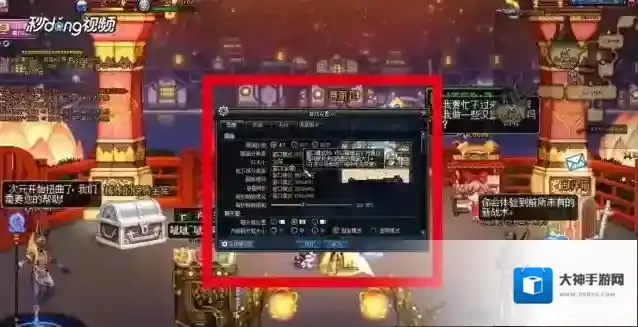
Win7系统DNF设置窗口的图文教程
1、首先按“ESC”键或者点开下方的“菜单”按钮,点击“游戏设置”;
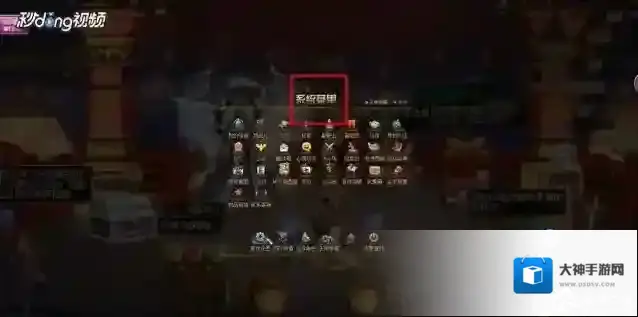
Windows7游戏设置
2、选择“图像画面比例”,下面有对应的分辨率,16:10的分辨率最高,还可以调节一些细节的数据,来提高画质;
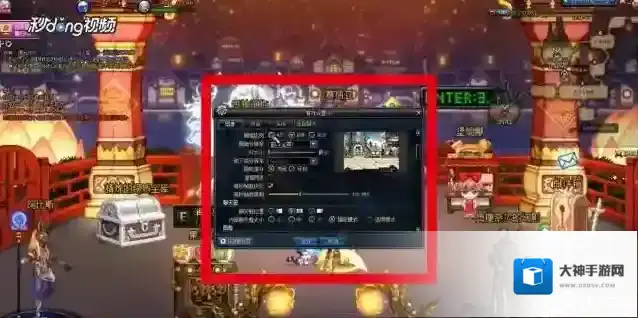
Windows7窗口模式
3、开启窗口模式后,可以通过鼠标拖动右下角的箭头来游戏界面的大小。
Windows7还不知道
如果你还不知道win7系统怎么设置DNF窗口,可以参考以上步骤为DNF设置清晰的窗口。
win7电脑开机左上角光标一直闪烁怎么办?解决win7左上角白杠一直闪的方法